Cloudflare's Block AI bots rule can silently break your own MCP server
September 21, 2026
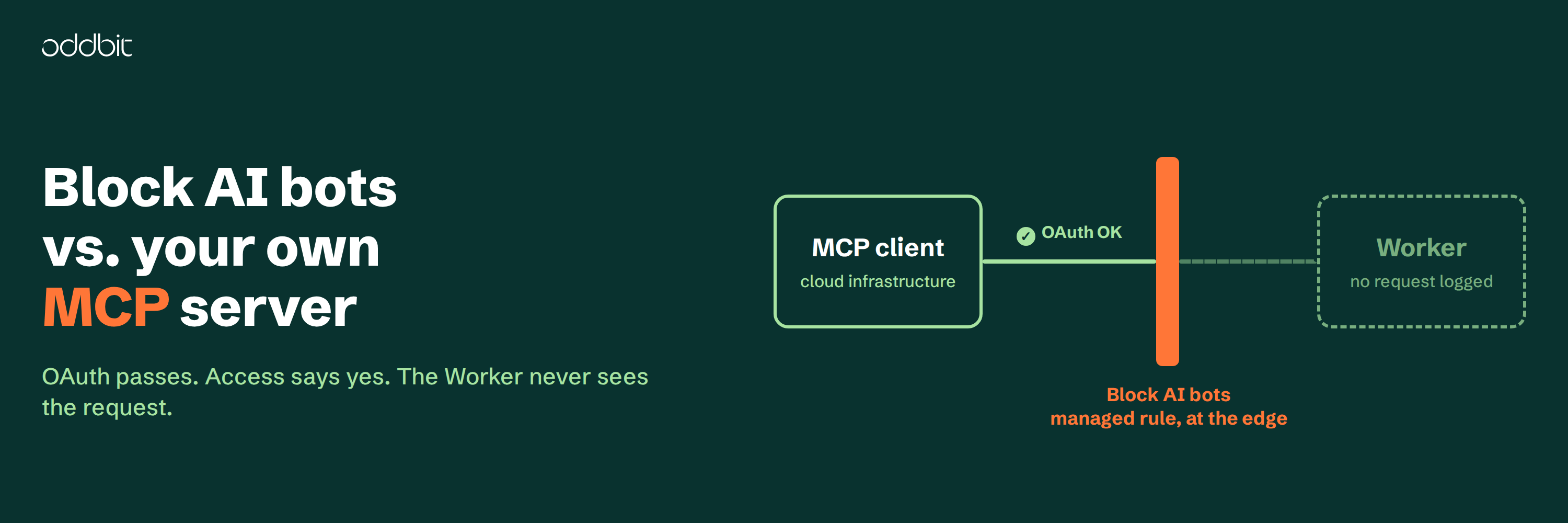
If your MCP server sits behind Cloudflare Access with managed OAuth, and the client signs in but then lists no tools, check Cloudflare's Block AI bots setting (or its newer AI bot policies) before you touch any code. We hit this while building the MCP server for shrtnr, our URL shortener, and every layer of the stack reported success while the connection went nowhere.
The error state looks like this. The OAuth handshake completes. Cloudflare Access records a successful sign-in. The MCP client reports connected, or times out after a while. Then nothing happens: no tools, no error from the server, and no request in the Worker logs, because the request never reached the Worker.
The setup
A Cloudflare Worker serves an MCP endpoint over Streamable HTTP on its own subdomain, mcp.your-domain.com. A self-hosted Cloudflare Access application protects that subdomain with Managed OAuth turned on. Access then acts as the OAuth authorization server: it handles client registration, token issuance, and validation at the edge. The Worker implements no OAuth endpoints of its own. It receives authenticated requests with identity headers and must validate the Access JWT that arrives in the Cf-Access-Jwt-Assertion header; Cloudflare requires this for Managed OAuth on an MCP server.
This is the setup Cloudflare documents for MCP servers, and it works. Managed OAuth is still in beta, so some dashboard labels may shift.
Every layer says yes
What makes this hard to diagnose is that nothing fails where you are looking.
Access shows the login. Zero Trust > Insights > Logs > Access authentication logs lists a successful authentication for your user against the MCP application. That is all it records. Cloudflare's own docs note that authentication logs do not capture what happens during the session afterwards.
The Worker shows nothing at all. No invocation, no log line, no exception. A Worker cannot log a request it never received, so an empty log reads as "no traffic" rather than "traffic blocked".
The client has the least to say. It obtained a token, opened a connection, and the connection came back empty or hung. Its error, when it shows one, does not name a security rule.
The place the block is recorded is the zone's Security Analytics, which the Cloudflare docs point to for viewing blocked AI bot traffic. You would only look there if you already suspected a security rule. Nothing in the OAuth flow, the Access dashboard, or the Worker points you at it.
The cause
Block AI bots is a managed rule in Cloudflare's bot protection. Cloudflare describes it as blocking verified bots classified as crawling for AI training, plus a number of unverified bots that behave similarly. It runs at the edge, before any request reaches your Worker.
In our case, Cloudflare classified the MCP traffic as AI bot traffic, and the managed rule intercepted it before it reached the Worker. The browser half of the OAuth flow still succeeded, because the client opens a browser window for Cloudflare Access on first connect, and that is ordinary browser traffic. Authentication completed, and the MCP requests that followed were blocked at Cloudflare's edge, while the client surfaced little or no useful information about why.
This does not mean every MCP client is classified this way. MCP is a protocol, and a client can be a hosted assistant, a desktop app, an editor, or your own CLI. Classification depends on the client and on how its requests reach Cloudflare. But if OAuth succeeds while your Worker sees no MCP traffic, Cloudflare's AI bot policies are worth checking before you debug the application itself.
The fix
Turn the rule off on the zone that hosts the MCP subdomain:
Cloudflare Dashboard > your zone > Security > filter by Bot traffic > Block AI bots > Do not block (off)The setting applies across the entire zone, so this has to be done on every zone that hosts an MCP subdomain. If your MCP endpoint lives on a subdomain of a domain that also serves a marketing site, turning it off there turns it off for the marketing site too.
Cloudflare is replacing this toggle. As of the docs at the time of writing, the single Block AI bots option is deprecated from 15 September 2026 in favour of Security Settings > Configure AI bot policies, which splits AI traffic into three presets: Search, Agent, and Training. Each preset can be set to Block (on all pages), Block on pages with ads, or Allow (do not block). Cloudflare's definition of Agent, automated activity acting in real time on a person's behalf, closely describes many MCP client interactions. On the newer policy model, check the Agent category first. Which category needs to be allowed may depend on how Cloudflare classifies the particular MCP client's traffic. New domains created after that date default to blocking Training and Agent traffic on pages that display ads.
Three adjacent traps
Give the MCP endpoint its own hostname. In our setup the endpoint lives on mcp.your-domain.com rather than behind a path on an existing application. That keeps the Access application, its policies, and the bot settings easier to reason about. The hostname goes on the Worker as a second custom domain under Workers & Pages > your Worker > Settings > Domains & Routes > Add Custom Domain. Cloudflare creates the DNS records for you.
Redirect URIs are per client. Under the Access application's Advanced settings, Allowed redirect URIs is an allowlist for dynamically registered OAuth clients. Each MCP client you connect needs its callback listed, and the list is not the same across products:
https://claude.ai/api/mcp/auth_callback     Claude.ai (legacy domain) and Claude Desktop
https://claude.com/api/mcp/auth_callback    Claude.ai (current domain)
https://dash.cloudflare.com/*               Cloudflare Access AI Controls portal
To find a client's exact callback, attempt to connect, let the flow fail, and read the redirect_uri parameter out of the error URL in the browser. Local clients that proxy the connection from your machine also need Allow localhost clients and Allow loopback clients turned on.
Access changes take time to propagate. Saving an Access application change can take 30 to 60 seconds to take effect. Test once, wait a minute, test again before you change anything else, or you will be debugging a state that no longer exists.
Your MCP server connects but does nothing: check these in order
- Block AI bots on the zone. Security > filter by Bot traffic > Block AI bots > Do not block (off). On the newer dashboard, Security Settings > Configure AI bot policies: check Agent first. Repeat for every zone that hosts an MCP subdomain.
- Security > Analytics on that zone. Look for blocked requests to the MCP hostname. If they are there, it is a security rule, not your code.
- The Access application covers the MCP hostname the client actually connects to.
- Managed OAuth is on, and the client's redirect URI is in Allowed redirect URIs. Localhost and loopback clients are allowed if you use a local proxy.
- You waited 60 seconds after the last Access change.
- The Worker has the MCP subdomain registered as a custom domain, and its Access audience and JWKS secrets are set.
- Only now, read the Worker logs.
The full setup we landed on, including the Worker secrets and client configuration for Claude, Claude Code, and VS Code, is in the shrtnr README on GitHub.
About Oddbit
We're a senior software development team based in Bali, Indonesia, with roots in Sweden. We build custom software for startups and scale-ups: web applications, mobile apps, SaaS platforms, and the integrations that connect them. Our clients span the Nordics, Europe, and Southeast Asia.
We build and release the tools we need ourselves, including Tanam (a Firebase CMS with AI content generation), Flutter packages with about a hundred thousand downloads on pub.dev, and Firebase Genkit plugins for AI model integration.
If you're putting AI agents in front of your own systems and want them wired up properly, talk to us. We'd rather show you our work than tell you about it.